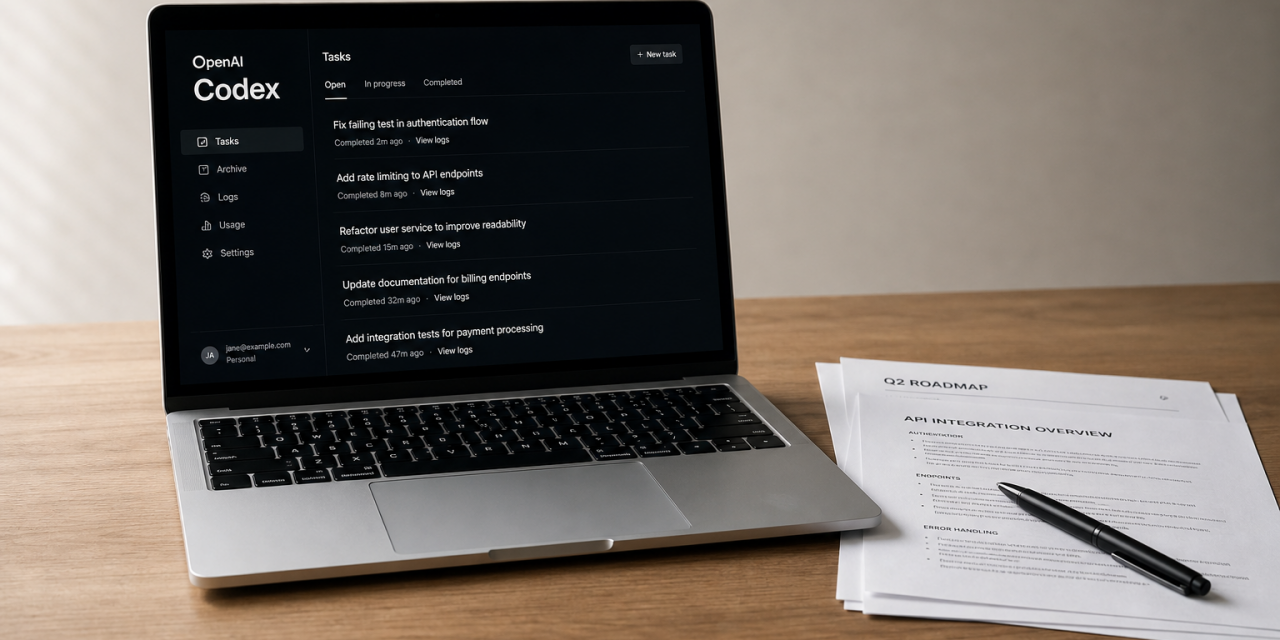
OpenAI Codex has an interface that looks like a developer tool, the responses read like documentation, and within five minutes most non-technical users close it and go back to standard ChatGPT. That reaction makes sense, but it’s based on an outdated assumption. Codex is no longer just a coding assistant. With the right configuration, it handles spreadsheets, documents, email triage, content repurposing, and recurring workflows that used to eat hours of your work week.
Codex works differently from a standard chatbot. It runs tasks instead of just generating text, it can work with files on your machine directly, and it can run multiple jobs at the same time. For knowledge workers, marketers, operators, and content creators, that opens up a working model that the regular ChatGPT interface simply cannot match.
Why Codex works for non-coding Tasks
The underlying model behind Codex is the same engine that powers high-end ChatGPT responses. The difference is execution. A standard chat session generates an answer and waits for you to copy it somewhere. Codex actually performs the task. It reads files, writes new ones, edits existing documents, and saves output to a folder you choose. That removes the copy-paste loop that quietly drains time across most AI workflows.
Two settings make the tool usable for non-developers. Inside File and Settings, switch off coding mode and enable everyday work mode. The capability does not change, but the response style shifts from technical explanations toward plain language.
While you are in the settings panel, set your reasoning level to medium for document and content tasks. High and extra-high reasoning are worth the extra tokens only when you are generating actual code. Also glance at the usage tab regularly. Codex consumes tokens faster than a normal chat session.
Setting up your first project folder
The project folder is the feature that turns Codex into something more than a chatbot. Instead of uploading files into a conversation, you point Codex at a directory on your computer. Anything inside that folder becomes available to the agent.
Create a dedicated folder, name it something obvious, and drop in the files you want to work with. Codex handles standard formats well, including.txt,.docx,.xlsx, and.pptx. Once the project is loaded, you choose a permissions level. Default mode pauses for approval on each action. Full access lets Codex run straight through to a finished result. For routine document work, full access is the practical choice.
What this looks like in practice
A simple prompt like “summarize the two transcript files in this folder and create a Word document explaining what they cover” produces a finished.docx file in roughly five minutes. No formatting cleanup, no manual export. The file appears in the folder, ready to share.
Spreadsheet work follows the same pattern. A request for a revenue projection with monthly growth rates, expense tracking, and net margin calculations produces a complete Excel workbook in under four minutes. If something looks off in the first version, you describe the issue in the same chat session and Codex regenerates the file with the fix applied.
Repurposing content without the manual work
The folder approach pays off most clearly when you start chaining tasks. Because Codex already has access to your files, you can repurpose existing material without re-uploading or re-explaining anything.
If a document about a product launch sits in your project folder, you can ask Codex to create an Instagram carousel based on it. The agent reads the source, extracts the relevant points, and generates the images directly. The same content can become tweets, an email newsletter draft, or slides for a deck, each pulled from the same source file with no manual context-setting.
This is the workflow that justifies the setup time. Do your primary writing or research once, then let Codex generate every downstream format from the same folder.
Connecting email and building skills
Codex includes a Gmail plugin that activates from the plugins tab. Once authorized, you can reference your inbox in any prompt with @Gmail. Asking for the latest update on a specific project pulls relevant threads, ranks them by urgency, and surfaces what needs a response. You can also ask Codex to draft replies that wait in your Gmail drafts folder.
Skills are the second feature worth setting up early. A skill is a saved set of instructions that Codex applies whenever you invoke it. Instead of re-prompting the same style requirements every time you write social copy, you create a skill once and call it with the @ symbol.
A skill for short-form posts might enforce a character limit, require plain language without jargon, and ban hashtags and emojis. After creating it, a prompt like “create ten posts about our latest product update” combined with that skill produces consistent output without style drift. The point is not just convenience. A skill captures a workflow, not just a format, which is what makes it reusable inside automations.
Automations and concurrent tasks
The automations panel lets you schedule tasks to run at specific times. A weekly automation can read your project folder every Sunday morning, summarize what you worked on, and email the summary to your team using the Gmail plugin. Another can compile a Friday marketing report and send it without you opening the app.
The capability that most users overlook is concurrent execution. Codex can run multiple tasks across separate chat windows at the same time. One window summarizes a transcript, another builds a financial model, a third runs a scheduled report in the background. Standard ChatGPT handles requests sequentially. Codex does not, and that changes how much you can move through in a single working session.
Common issues worth knowing about
- Approval prompts on every action. Switch from default permissions to full access for trusted, repeatable workflows.
- File formatting glitches. Stay in the same chat session and describe the issue. Codex re-reads the file with full context and fixes it faster than starting fresh.
- Token usage climbing fast. Drop reasoning to medium for non-code tasks and check the usage tab before long sessions.
- Gmail disconnecting. Re-authorize through the plugins tab. Connections expire after periods of inactivity.
The real shift
The configuration work takes about twenty minutes. The setup itself is not the interesting part. What matters is the change in working model. A project folder, three or four skills covering your most common output types, and two scheduled automations turn Codex into a workspace that runs without constant supervision. The marginal cost of each new document, post, or report drops sharply once the structure is in place.
The quieter implication is that the line between coding tools and productivity tools is dissolving. The same agent that writes a Python script can also draft your weekly status email, and the skill you build to enforce a writing style is structurally identical to the one a developer builds to enforce a code pattern.