Kimi WebBridge is a browser extension that lets an AI agent click, type, navigate, take screenshots, read pages, fill in forms, and extract information inside your existing browser. The key idea is simple: instead of asking an AI model to only answer from memory or from search snippets, you let it operate websites in a way that more closely resembles to how you would do the work yourself.
On its official feature page, Kimi describes WebBridge as a tool that “clicks, fills, navigates, and extracts.” That short description matters because it places WebBridge in a very practical category. This is not only a chatbot feature. It is browser automation for repetitive web tasks, built for AI agents that need to interact with real web pages.
What Kimi WebBridge does
Kimi WebBridge gives an AI agent controlled access to your Chrome or Edge browser. The agent can open a website, inspect what is on the page, move through menus, search, compare information, and return structured results. It can also work inside logged-in sessions because it uses the browser you already use, with your existing cookies and accounts.
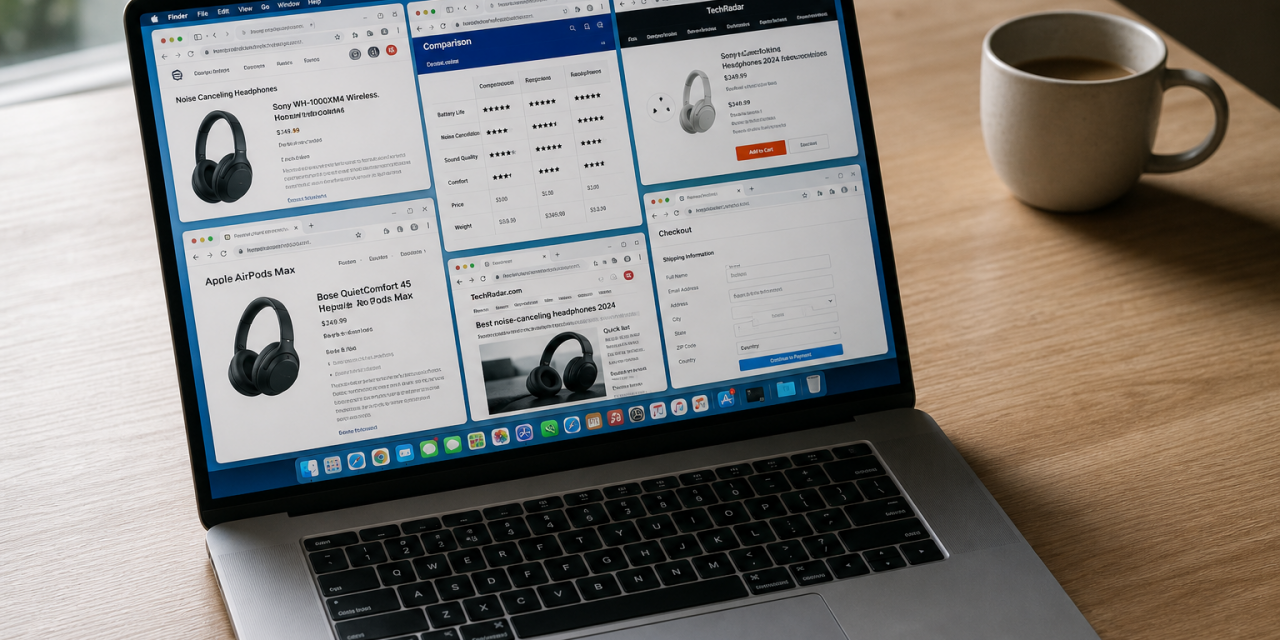
That makes the tool useful for tasks where standard search is not enough. A search engine can show a product page, but it will not always compare options across filters, open multiple retailer pages, check stock, and build a clear shortlist. A browser agent can attempt that workflow step by step.
Common use cases are:
- Comparing shopping prices across multiple websites
- Collecting public job listings into a table
- Checking competitor product pages for visible pricing and feature changes
- Extracting information from dashboards you already have access to
- Filling repetitive web forms after you approve the task and data
- Summarizing pages that require navigation before the relevant content appears
The official Kimi page uses price comparison as an example, which is a good fit. The value is strongest when the task is boring, repetitive, and browser-based, but still too messy for a simple script.
How Kimi WebBridge works locally
The most important technical detail is the local setup. According to Kimi, WebBridge pairs a local service with a browser extension. The AI agent sends instructions to that local service. The service then uses Chrome DevTools Protocol to navigate, click, capture screenshots, and read page content in your browser. Results are sent back to the agent.
Kimi says that this process runs locally, so your login sessions and page content do not leave your device through WebBridge itself. That is a meaningful difference from many cloud-hosted browser agents, where a remote browser session may process the pages you visit.
In plain English, WebBridge acts like a bridge between your AI agent and your browser. It does not replace Chrome or Edge. It helps the agent operate the browser you already have open.
Why Chrome DevTools Protocol matters
Chrome DevTools Protocol is the same underlying interface developers use to inspect and debug web pages. For browser automation, it is powerful because it can observe page structure, trigger actions, and capture page state more reliably than a purely visual tool.
That does not mean every task will work perfectly. Websites can change layouts, block automation, load content dynamically, or require human verification. Still, using browser level controls gives Kimi WebBridge a practical foundation for multi step browsing tasks.
How to set up Kimi WebBridge
The official setup flow has three main parts. First, you install the browser extension from the extension store or install it manually. Second, you connect Kimi WebBridge to your agent by pasting the command from Kimi’s setup page into the agent. Third, the agent connects to the local WebBridge service automatically.
Kimi also explains that Kimi Claw Desktop is used when you want Kimi Claw to run locally on your computer. You open the Kimi Desktop App, find Kimi Claw in the left sidebar, add a new Claw, and select the option to run it on your computer.
If the extension appears disconnected, Kimi recommends checking that the extension is installed, resending the connection command in Kimi Claw Desktop, running it again, and restarting the Kimi Desktop App after setup finishes.
Reports surrounding the launch also note that WebBridge is not limited to one agent environment. Support has been described for tools such as Claude Code, Cursor, Codex, Hermes, and Kimi Code CLI. If you already use an agent workflow, that flexibility may be one of the most interesting parts of WebBridge.
Where Kimi WebBridge is useful
Kimi WebBridge is best for tasks with clear instructions and verifiable outputs. A strong prompt might ask it to compare five laptop models across three retailer sites and return price, availability, warranty information, and shipping notes. An ineffective prompt would be too vague, such as asking it to find the best laptop without budget, region, or criteria.
Good tasks usually have these traits:
- The websites are accessible in your browser
- The task involves repeated clicking, filtering, or copying
- The output can be checked by you
- The data is not highly sensitive
- The agent can recover if one page does not load as expected
For example, WebBridge can help with a market research sweep across public websites. It can open pages, collect visible claims, and place them into a structured summary. It can also help with admin work, such as moving through a web portal and extracting status updates. In both cases, the human still needs to review the result.
Privacy risks you should know
The local design is the headline feature, but local does not automatically mean risk-free. Kimi’s WebBridge page says page content and login sessions stay on your device via the local WebBridge architecture. That is reassuring for the browser bridge itself.
However, the broader AI workflow can still involve data leaving your computer. If the agent needs to reason over extracted page content, that content may be sent to the model or agent service you are using, depending on your setup. If you connect WebBridge to a third-party coding agent, that agent’s own privacy terms also matter.
A separate privacy policy analysis of Kimi raised concerns about broad language around using user content to improve and train models, unclear opt-out controls, international transfers, and sensitive data handling. That analysis is about the broader Kimi service rather than WebBridge alone, so it should not be treated as proof that WebBridge sends your browser content to Moonshot. It does highlight a practical point: you need to separate the local bridge architecture from the data policies of the AI service receiving your prompts and results.
A good rule of thumb is to avoid Kimi WebBridge for highly sensitive workflows unless you have reviewed the full terms for every component in the chain. That includes Kimi, the agent you connect, the browser extension, and any desktop app involved.
What not to automate with WebBridge
Even with local browser control, some tasks deserve extra caution. Avoid letting any AI agent handle banking, medical records, legal client files, private HR data, passwords, recovery codes, or confidential business documents unless your organisation has approved that exact workflow.
Also avoid giving broad, open-ended instructions inside logged-in accounts. A better pattern is to define a narrow task, watch the first run, and review the output before acting on it.
Kimi WebBridge compared with cloud browser agents
Cloud browser agents can be convenient because they run in hosted environments and need less local setup. The trade-off is that page activity may happen on someone else’s infrastructure. For casual browsing tasks, that may be acceptable. For logged-in accounts or internal tools, it becomes a more serious decision.
Kimi WebBridge takes a different approach. It uses your local browser and a local service, which gives it a stronger privacy story for browser interaction. The local setup proces is slightly more technical, the benefit is greater control over where the browser session runs.
The main comparison is not simply which agent is smarter. It is where the browsing happens, what data is exposed, and how much control you keep.
A sharper way to think about Kimi WebBridge
Kimi WebBridge is most useful when you treat it as a local browser operator, not as a fully trusted digital employee. It can save time on repetitive web tasks, and its local architecture is a serious design choice. The important nuance is that the bridge may be local while the reasoning layer may not be. The browser can stay on your machine, but your workflow is only as private as the agent you connect to it.