Claude Cowork Dispatch
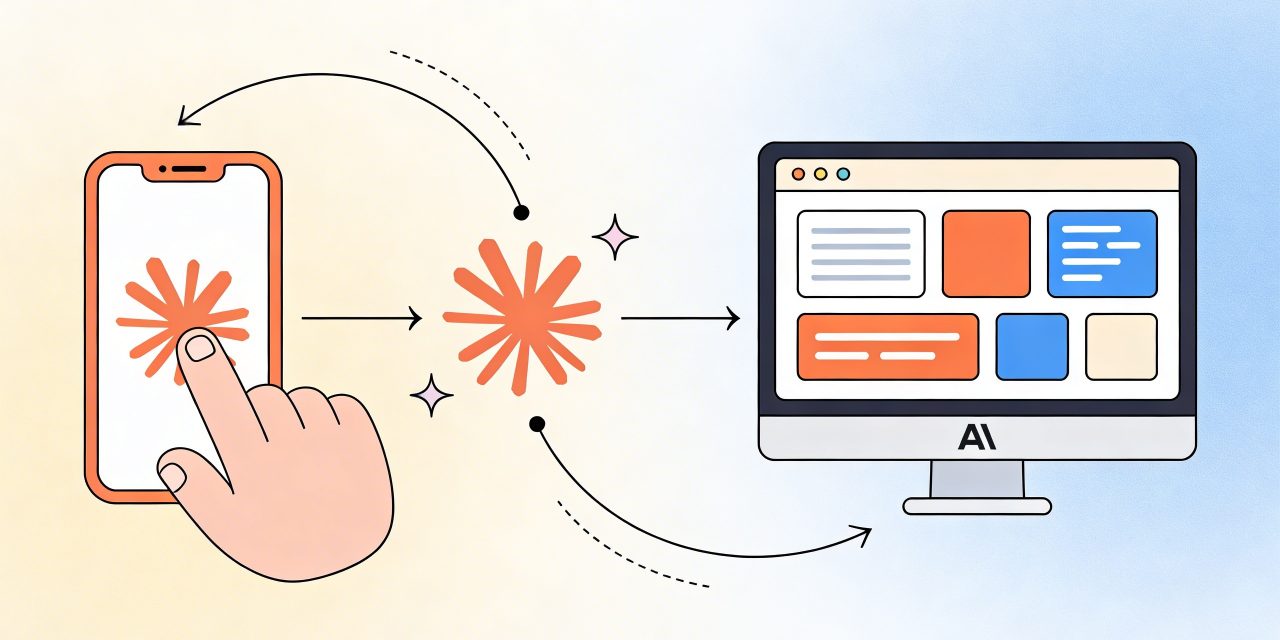
Claude Cowork Dispatch lets you send a task from your phone and have Claude complete it on your computer. That is the core idea. You do not need to sit at your desk, open a remote desktop, or manually move between devices. Instead, you give Claude an instruction, leave it running on your desktop setup, and come back to the finished result.
For anyone already using Claude inside Cowork, this makes the workflow much more flexible. You can start something while commuting, waiting between meetings, or stepping away from your desk. Dispatch is still a research preview, so it is not perfect yet, but the concept is practical and easy to understand once you see how it works.
What Claude Cowork Dispatch is
Claude Cowork Dispatch is a feature inside Cowork that creates one continuous conversation with Claude across your phone and your desktop. Instead of starting a fresh session every time, you keep working inside the same thread. Claude remembers the context of earlier requests, so your next task can build on what came before.
The important detail is where the work happens. Claude does not complete these tasks on your phone. It works on your desktop computer, using the files, connectors, and plugins you already set up in Cowork. Your phone becomes the place where you assign work and check results. Your computer remains the place where the actual task runs.
That makes Dispatch feel less like a mobile chat feature and more like a lightweight remote task system for Claude. You ask for an outcome, then Claude returns the result, such as a memo, a spreadsheet summary, a comparison table, or another file.
How Claude Cowork Dispatch works
The workflow is simple. You send Claude a message from your phone or desktop. Claude then uses your desktop environment to handle the request. Because the conversation is persistent, you can start on mobile and continue later on desktop without losing context.
This matters because many useful tasks depend on things your phone cannot easily access or handle well. Your desktop may have local spreadsheets, synced folders, browser sessions, Slack access, email access, cloud storage connectors, or plugins that are already configured in Cowork. Dispatch uses that existing setup. You do not need to rebuild it for mobile.
Another useful part of the design is that you are usually focused on the result, not every intermediate step. Instead of watching a live screen, you assign a task and come back to the finished output. In that sense, Dispatch is better suited to asynchronous work than hands on live control.
What you need before setup
To use Claude Cowork Dispatch, you need a few basics in place.
- A recent Claude Desktop app running on macOS or Windows x64
- A recent Claude mobile app on your phone
- A Pro or Max plan
- An active internet connection on both devices
- Your desktop computer awake and the Claude app open while the task runs
That last point is easy to miss. Dispatch is not a cloud only background service. If your computer goes to sleep or the desktop app closes, Claude cannot continue working on the task.
How to start using it
Getting started is straightforward. In most cases, setup only takes a few minutes.
- Update Claude Desktop to the latest version.
- Update the Claude mobile app on your phone.
- Open Cowork on your desktop or phone.
- Open the Dispatch section from the side panel.
- Follow the setup flow and enable the access you want Claude to have.
- Choose settings that help keep your computer available while tasks are running.
- Finish setup and start sending messages inside the Dispatch thread.
Once it is connected, the conversation syncs across both devices automatically. You can start a request on your phone and continue it later from your computer in the same thread.
Why Dispatch is useful
The biggest advantage of Claude Cowork Dispatch is timing. Useful work does not always begin when you are sitting at your desk. Sometimes you think of a task while walking, commuting, or waiting for a meeting. Dispatch lets you capture that moment and turn it into action without losing time.
A second advantage is access. Your phone is convenient, but it is limited. Your desktop environment usually holds the real context, including local documents, browser sessions, connected services, and files that do not make sense to open on mobile. Dispatch bridges that gap. You send the instruction from your phone, but Claude works where the useful data already lives.
A third advantage is continuity. Because everything happens in one persistent thread, Claude keeps context between requests. If you already asked for a report outline in the morning, you can later ask for a cleaner summary, a presentation draft, or a comparison table without starting from zero.
There is also a practical productivity benefit. Dispatch removes the need for full remote screen sharing in many situations. You are not logging into your machine just to click through folders and apps. You are asking for an end result. That can be faster and less distracting when the task is well defined.
Practical ways to use Dispatch
Dispatch is best when the task is clear and the output matters more than the process. Good examples include work like this.
- Summarizing local files such as pulling data from a spreadsheet and turning it into a short report
- Searching across connected tools such as Slack and email, then drafting a briefing for your next meeting
- Creating structured outputs such as a memo, table, or slide outline based on files from cloud storage
- Organizing folders by sorting, processing, or preparing files in a specific location on your computer
- Preparing daily briefings so you can review important updates before you reach your desk
A good rule is to use Dispatch for tasks you would normally hand to an assistant in plain language. If you can clearly describe the goal, the expected output, and the source material, it is a better fit.
Safety points you should not skip
Dispatch is convenient, but it also expands the impact of the permissions you already gave Claude in Cowork. If Claude can access files, connected services, plugins, or browser tools on your desktop, those capabilities now become reachable from your phone through the same system.
That means you should think carefully about access before using it heavily. Make sure you trust the apps and services in the workflow. Know which folders, accounts, and connectors are available. Know how to disconnect or revoke access quickly if something goes wrong.
This matters because mistakes can have real consequences. A bad instruction is not only a bad answer. It could lead to file changes, the wrong browser action, or an unwanted interaction with a connected service. The safer your setup is, the more confidently you can use Dispatch.
Current limitations to keep in mind
Because Claude Cowork Dispatch is still a research preview, it comes with limits. Your desktop must stay active. Claude only responds to messages you send. There is only one continuous thread, so you cannot manage several separate Dispatch conversations at once. There are also no completion notifications yet, and scheduled tasks are handled separately rather than inside the same Dispatch thread.
It is also worth keeping expectations realistic. Early hands on reports suggest that Dispatch can be slow and uneven on more complex tasks. It is promising, but it is not something you should treat as flawless background automation yet.
Where Dispatch makes the most sense
Claude Cowork Dispatch is most useful when you want to start real work away from your desk without losing access to your desktop environment. It works best for defined, asynchronous tasks that depend on your files, connectors, and existing Cowork setup. If you treat it like a smart handoff system rather than a perfect remote control tool, it becomes much easier to use well.
That is also the best way to judge it today. Dispatch is not about replacing your computer. It is about extending it, so you can turn small moments on your phone into finished work on your desktop.